

Slack Integration
Protect Your Passwords, Codes and API Keys When Collaborating on Slack!
The CredenShare Slack application offers a quick and practical way to share secure information with the people you work with. By keeping your credentials outside of plain text conversations, you mitigate the potential for compromise that is often associated with large scale breaches.
To get started with the CredenShare Slack App, follow the instructions below.
Installing the CredenShare Slack Application
Step 1 — Get a CredenShare Account
You need a CredenShare account on a paid plan — Plus, Business or Enterprise — with share allowance remaining. Each plan sets its own allowance for each billing month.
Compare PlansStep 2 — Install the CredenShare Slack App on Your Workspace
Head over to the CredenShare Slack App page, review your settings and add the App to your Slack Workspace.
You can visit the CredenShare Slack Application page by clicking the button below:
Slack Directory Page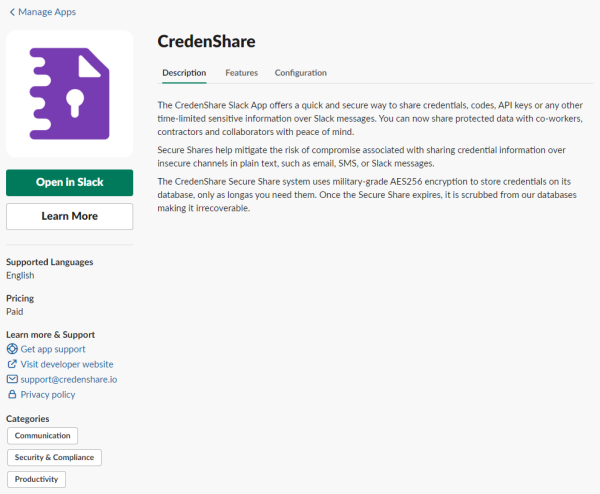
Or you can start the install directly. This link goes to CredenShare, which builds the Slack authorization request — client id, scopes and a one-time state value — and redirects you to Slack:
Add to SlackStep 3 — Review App Permissions and Allow
Review and Allow the CredenShare Slack Application permissions to proceed with the installation on your Slack Workspace.
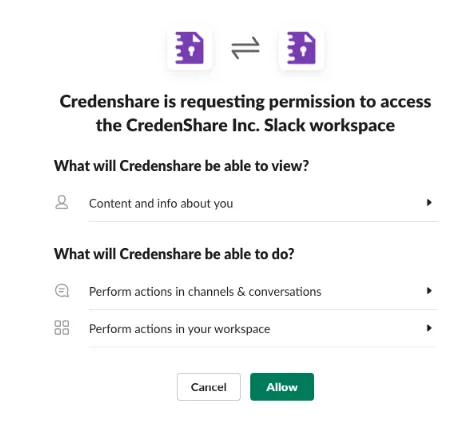
Once you've approved the permissions for the application, you will see the following screen:
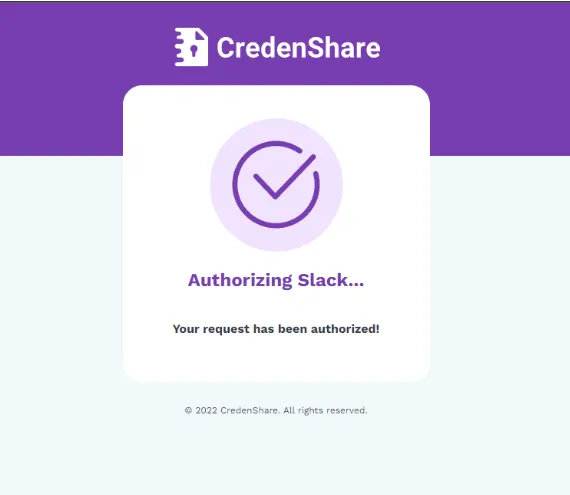
Once authorized, you should now see the CredenShare App available from the shortcuts button.
Using the CredenShare Slack Application
Logging In
Once installed, the first step before using the CredenShare Slack Application is to log in. To do so simply open the Shortcuts Menu ( + button ) or type the CredenShare Slack command shortcut /credenshare in the input area.
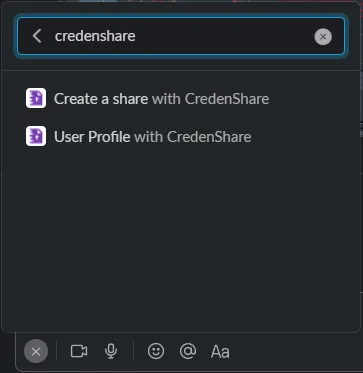
The first time the CredenShare Shortcut is run, you will be presented with a dialog requesting you to log in to our Service.
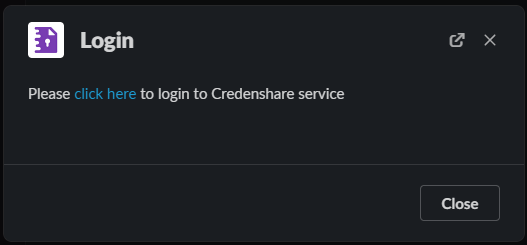
Once you click Login, the CredenShare sign-in page will be displayed on your browser. Enter your credentials and sign in to complete the process.
On your browser you will see the following message after you have successfully logged into CredenShare. You may now close that browser tab or window.
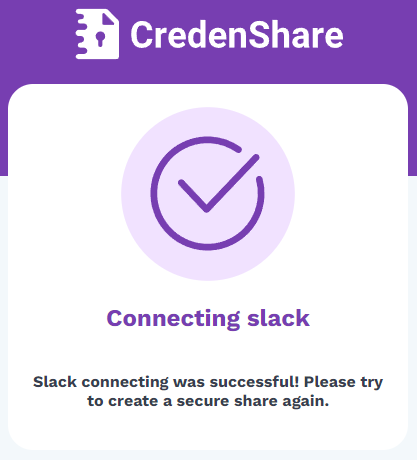
The authentication process is completed. Now you can start using the CredenShare Slack App to create and share Secure Shares with your Slack Contacts.
Creating a Secure Share
You can create a CredenShare Secure Share on Slack using the shortcuts menu or simply typing /credenshare on the Slack input box.
The Create Share dialog will open with the following options:
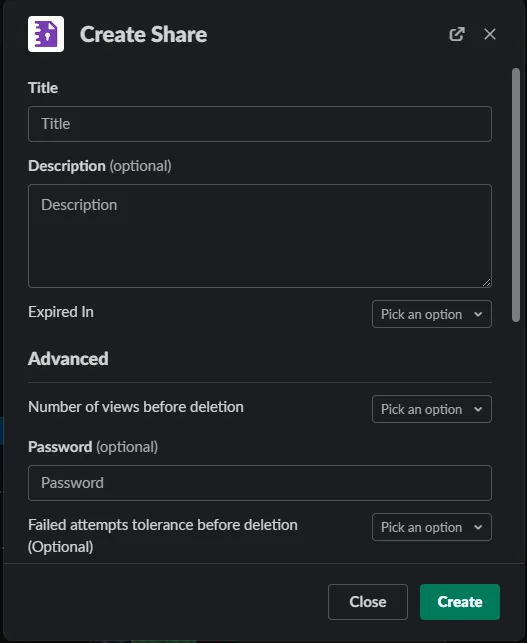
| Option | Description |
|---|---|
| Title | A short title to quickly identify the Secure Share in your sharing history |
| Description | Additional details you want to reference in relation to the Secure Share |
| Expires In | The maximum duration of the Secure Share before it is scrubbed from the database |
Advanced Options
| Option | Description |
|---|---|
| Number of views before deletion | How many times the recipient can view the Secure Share |
| Password | Additional protection that requires a pre-shared key between you and your recipient |
| Failed attempts deletion threshold (Optional) | Deletes the share after a recipient fails password entry this many times |
| Timed View | Controls the maximum time a recipient can have the shared credentials displayed on screen |
| Secure View Prompt | Presents the recipient with a custom message before displaying the Secure Share |
| Require Login | Enforces that the Secure Share is only viewable by recipients with a logged-in CredenShare account |
Fields
These are the containers for the secure information you want to share:
| Field | Description |
|---|---|
| Field Name | The name of the field (e.g., username, email, password, API key, code) — helps the recipient identify what the field contains |
| Field Value | The protected information you are sharing with your recipient |
| Add Field | Adds a set of Field Name / Field Value blocks to customize the information you are sharing |
| Select Conversations | Allows you to pick one or more recipients — Slack users, group conversations, or channels |
Once you have filled out the necessary information, click on the Create button.
CredenShare will show you a popup to let you know that the Secure Share was successfully created and shared with the selected recipients.
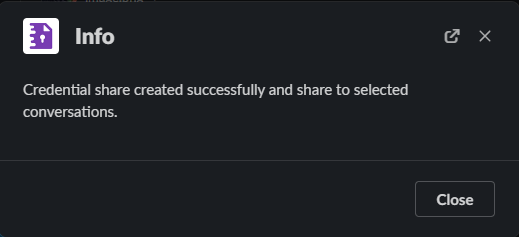
On their end, the recipients you select will be notified by the CredenShare App about the Secure Share and make the link available to them to view on their browser.
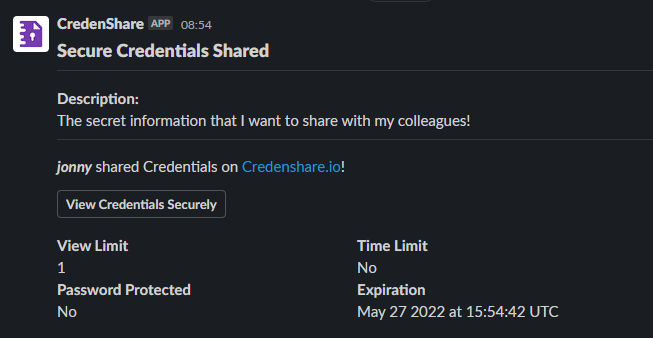
Your recipient(s) can click the View Secure Share button and access the Secure Share securely.
CredenShare Account Profile Actions
You can check your CredenShare Profile information by clicking on the User Profile Slack Shortcut.
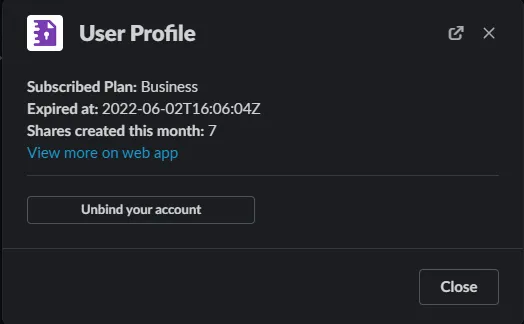
The User Profile tool provides you with basic information about the CredenShare linked account.
You can access your CredenShare account by clicking on View More on web app, which will take you to the CredenShare app on your browser.
If you wish to disconnect your CredenShare account from your Slack account, you may use the Disconnect your account button. This unlinks Slack from your CredenShare account. Your CredenShare web session is unaffected — you will simply be asked to sign in again the next time you run /credenshare.
Plans and Share Allowance
The Slack app requires a paid plan: Plus, Business or Enterprise. Your plan then decides how many shares you can create and which of the advanced dialog options are available to you:
- Share allowance — each paid plan sets an allowance for each billing month, and the window is anchored to your billing anniversary rather than the 1st: renew on the 17th and it resets on the 17th. Shares you create in Slack count against the same allowance as shares created in the app or through the API.
- How usage is counted — a share still counts after it expires or is deleted, so removing one does not free allowance. Credentials submitted into your Secure Requests count against your allowance, not the submitter's.
- Dialog options — the number of custom fields is capped by your plan, and several of the advanced options are plan features: password protection, the failed-attempts deletion threshold, the secure view prompt, and IP restriction.
On a plan that does not include Slack
If your plan is Free, Solo or Basic, you can install the app and sign in, but creating a share returns:
The Slack integration is available on Plus, Business and Enterprise plans. Your current plan does not include it — upgrade in CredenShare to share credentials from Slack.
Everything else in the app still works, including /credenshare and disconnecting your account.
Web-based sharing in the CredenShare app is unaffected on every plan.
If you are a member of a team, pick the team in the Team dropdown before creating the share. What counts is the plan of the team the share belongs to, so a member of a Plus, Business or Enterprise team can create shares from Slack without holding the subscription themselves.
Leave the team unselected and the share is a personal one, judged against your own plan. Team members do not have a plan of their own, so a personal share will be refused even when the team you belong to includes the integration — select the team.
Ready to use CredenShare on Slack?
Compare plans to see your share allowance and which sharing options are included.