

Browser Extension
Share a Credential Without Leaving the Page You Are On
The CredenShare browser extension puts the whole create flow behind a toolbar button. You can hand someone a password, an API key or a block of config without opening a new tab, and without pasting it into a chat message that lives forever.
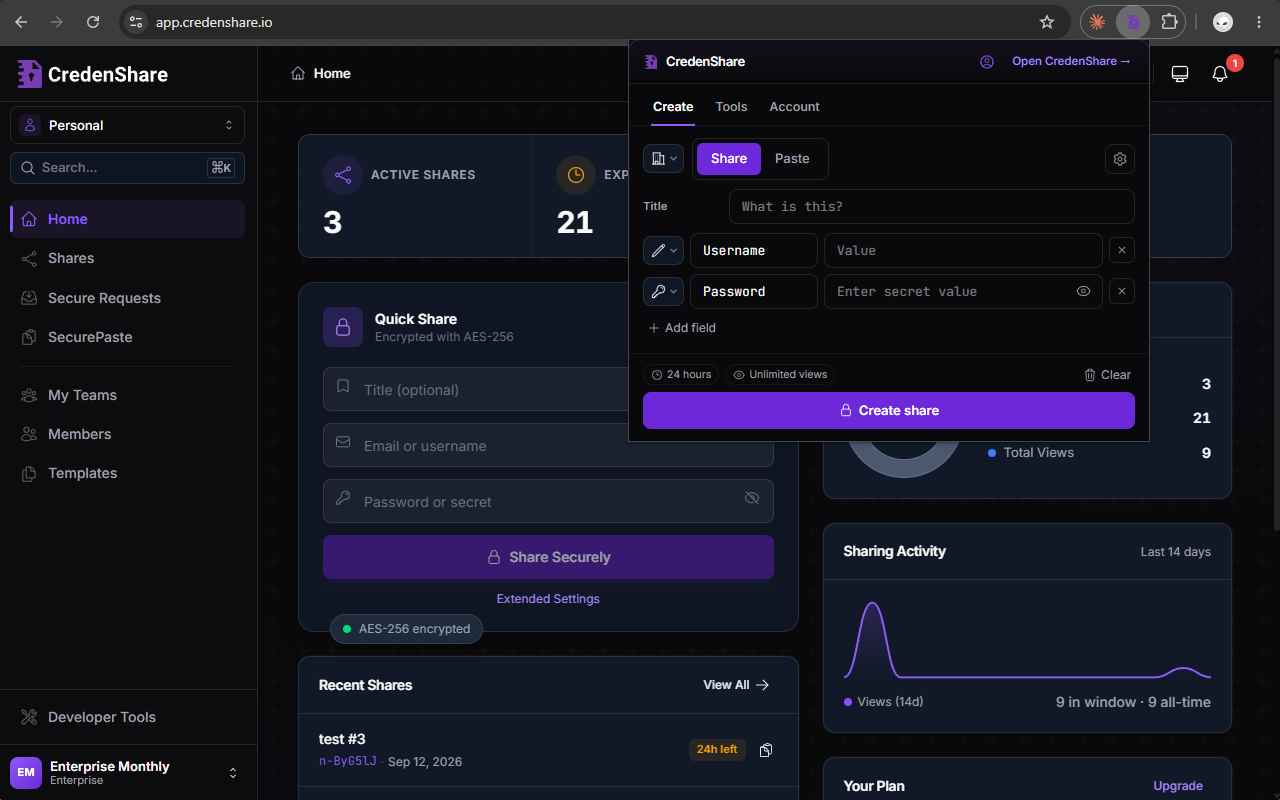
Everything you put into a share is encrypted inside your own browser before it is sent. CredenShare stores the result without being able to read it.
Installing the Extension
The extension is built for Chrome, Edge, Firefox and Safari. Install links will appear here as each store listing goes live.
Once it is installed, pin it to your toolbar so it is one click away — in Chrome and Edge, open the puzzle-piece menu and click the pin next to CredenShare.
Connecting It to Your Account
The extension has no login form of its own, and that is deliberate: signing in happens in the web app, which owns the entire authentication flow including multi-factor authentication, Google sign-in and device trust.
To connect it, sign in to CredenShare in the same browser. The extension picks up that session automatically. If you are signed out, the popup offers an Open CredenShare link that takes you there.
Signing out of CredenShare signs the extension out too.
Open CredenShareCreating a Share
Click the CredenShare icon in your toolbar and stay on the Create tab.
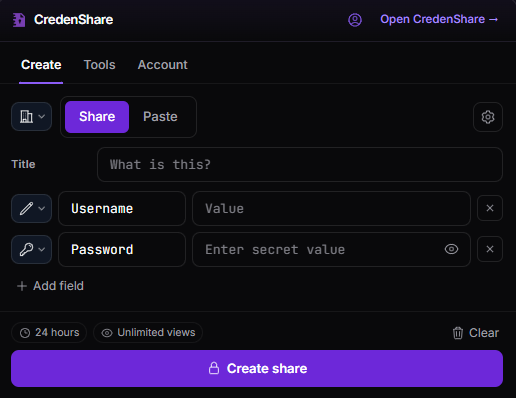
Step 1 — Choose Where It Belongs
The control at the top left picks the workspace. Leave it on Personal for a share that is yours, or pick a team to create the share inside that team, where the colleagues you share the workspace with can see it.
Step 2 — Choose Share or Paste
Share is a set of labelled fields — the right shape for a username and password, a set of API credentials, or anything with more than one part. Paste is a single block of text or code; see SecurePaste below.
Step 3 — Fill In the Fields
Give the share a Title so you can recognise it later in your dashboard, then fill in the fields. A new share starts with Username and Password; Add field adds more, and the selector on the left of each row sets its type:
| Type | Use it for |
|---|---|
| Text | Anything short and not secret — a hostname, an account ID |
| Password | Secrets. The value is masked as you type |
| Multiline | Longer values such as a certificate or a private key |
| Markdown | Formatted instructions to go with the credentials |
| Code | Snippets, with syntax highlighting for the recipient |
| Date | An expiry or a valid-from date, in a format you choose |
Step 4 — Set the Rules
The gear icon opens the settings for this share.
| Setting | What it does |
|---|---|
| Expiry | 1 hour, 24 hours, 3 days, 7 days, 30 days, or never. Defaults to 24 hours |
| Max views | Destroy the share after it has been opened this many times |
| Timed view | Once opened, the contents stay visible for a set number of seconds |
| Passcode | A second secret the recipient must type. Send it by a different channel |
| IP allowlist | Only these addresses can open the share |
Some settings depend on your plan. The chips above the button always summarise what is actually set — 24 hours, Unlimited views, Passcode, IP limited — so you can see the rules without opening the panel.
Step 5 — Create It and Send the Link
Click Create share. The link is generated and copied to your clipboard automatically — the popup confirms with Copied to your clipboard. From the result you can also use Copy link again, Create another, or jump to Sent shares in the web app.
Send the link however you like. Anyone holding it can open the share until its rules run out, so treat the link itself as the secret.
Creating a SecurePaste
Switch the toggle to Paste for a single block of text instead of labelled fields. Choose Code and a language for syntax highlighting, or Markdown for formatted notes. The language list matches the web app's, so a paste created here renders identically for whoever opens it.
Everything else — expiry, view limits, passcode, IP allowlist — works exactly as it does for a share.
The Developer Tools
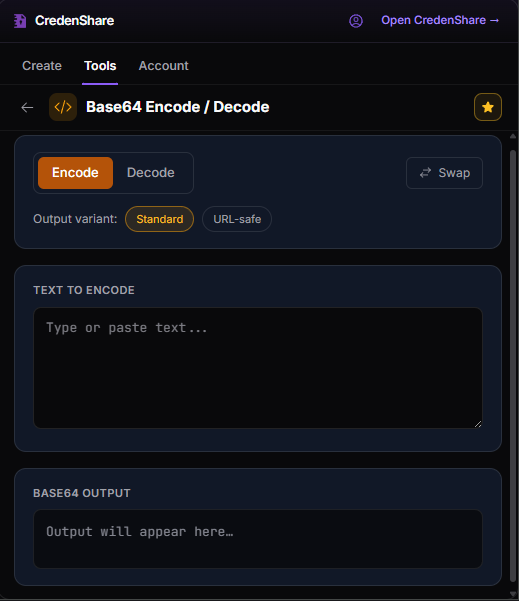
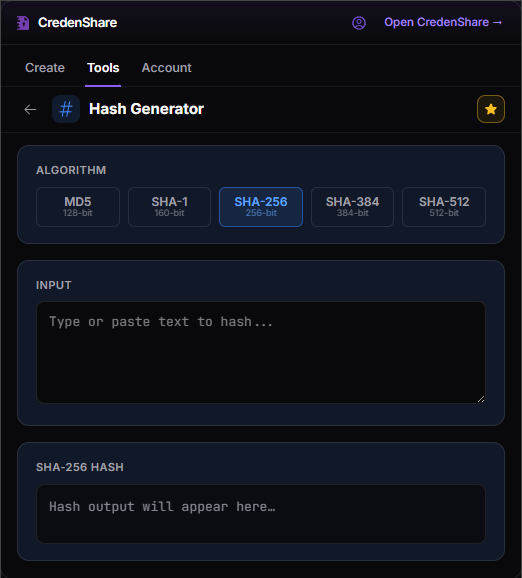
The Tools tab carries fifteen utilities that run inside the popup. No account, no network request, no new tab — what you type into them never leaves your machine.
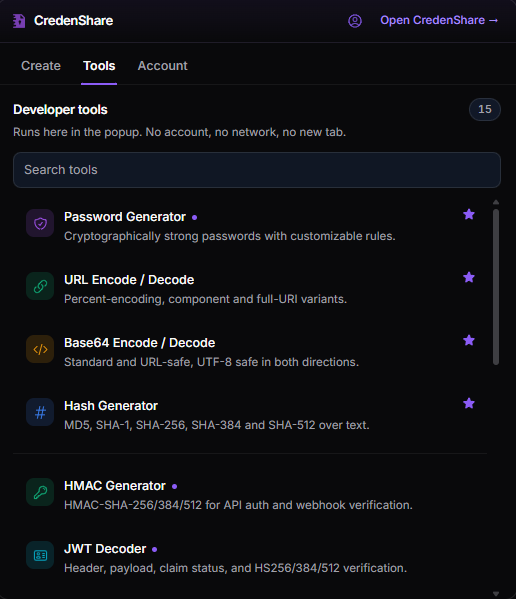
Search by name at the top, and click the star to pin the ones you use so they sit at the top of the list.
| Tool | What it does |
|---|---|
| Password Generator | Cryptographically strong passwords with customizable rules |
| API Key Generator | High-entropy API keys in hex, base64url or UUID form |
| Password Strength | Entropy, pattern detection and crack-time estimates |
| Hash Generator | MD5, SHA-1, SHA-256, SHA-384 and SHA-512 over text |
| HMAC Generator | HMAC-SHA-256/384/512 for API auth and webhook verification |
| Base64 Encode / Decode | Standard and URL-safe, UTF-8 safe in both directions |
| URL Encode / Decode | Percent-encoding, component and full-URI variants |
| JWT Decoder | Header, payload, claim status, and HS256/384/512 verification |
| AES Encrypt / Decrypt | AES-GCM under a PBKDF2 passphrase |
| Shamir Secret Sharing | Split a secret into shares; any k of n reconstruct it |
| JSON Formatter | Format, minify, validate, escape, unescape and diff |
| JSON ↔ YAML | Convert between JSON and YAML in either direction |
| CSP Generator | Build a Content-Security-Policy header or meta tag |
| .env Generator | Compose a .env file, with generated secrets and presets |
| Timestamp Converter | Unix time to and from human-readable dates |
Each tool remembers how you last set it up — SHA-256 rather than MD5, Decode rather than Encode — so it opens ready to use. Those are settings only; what you ran the tool on is never kept.
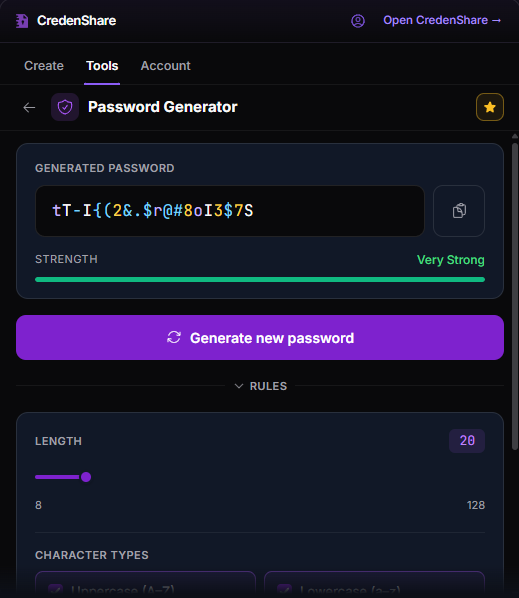
The Account Tab
The Account tab shows which account the extension is using, your active and expired share counts, total views, and how much of your plan's share allowance you have used this billing month. It is a summary — the full dashboard is one click away on Open CredenShare.
What the Extension Can and Cannot Do
It creates shares. It never opens them. Reading a share always happens in the browser on the share link itself, never inside the extension — so an extension on a colleague's machine is not a way into your shares.
It talks to one address. The extension can reach app.credenshare.io and nothing else. It cannot read the pages you visit, the tabs you have open, or anything you type outside its own window.
It contains no analytics. No telemetry, no tracking pixels, and no report of your usage to anyone.
It writes to your clipboard, and never reads it. The only thing it puts there is a link you just created.
For the full detail — including exactly which parts of a share are stored in readable form, and what the extension keeps on your device — see section 20 of the Privacy Policy.
Troubleshooting
The popup says I am signed out, but I am signed in. The extension uses your session on app.credenshare.io. If you signed in on a different browser or profile, sign in on this one. Opening the dashboard once from the popup is enough.
A setting I want is greyed out or refused. Some share settings depend on your plan. Open the pricing page to see what each plan includes.
I closed the popup and lost the link. A created link is held for five minutes of inactivity, so reopening the popup usually brings it back.
After that it depends on whether the web app has the key it needs to rebuild the link. Open CredenShare in the same browser at least once after creating a share and the extension hands it over, so Sent shares can copy the link again. If your plan includes zero-knowledge custody, the link can be rebuilt on any of your activated devices instead. Otherwise the share is still there and still works for whoever you already sent the link to, but it cannot be re-copied — create a new one.
My team's workspace is not in the picker. The picker lists the workspaces your account belongs to. If a team is missing, check your membership under Members in the web app.